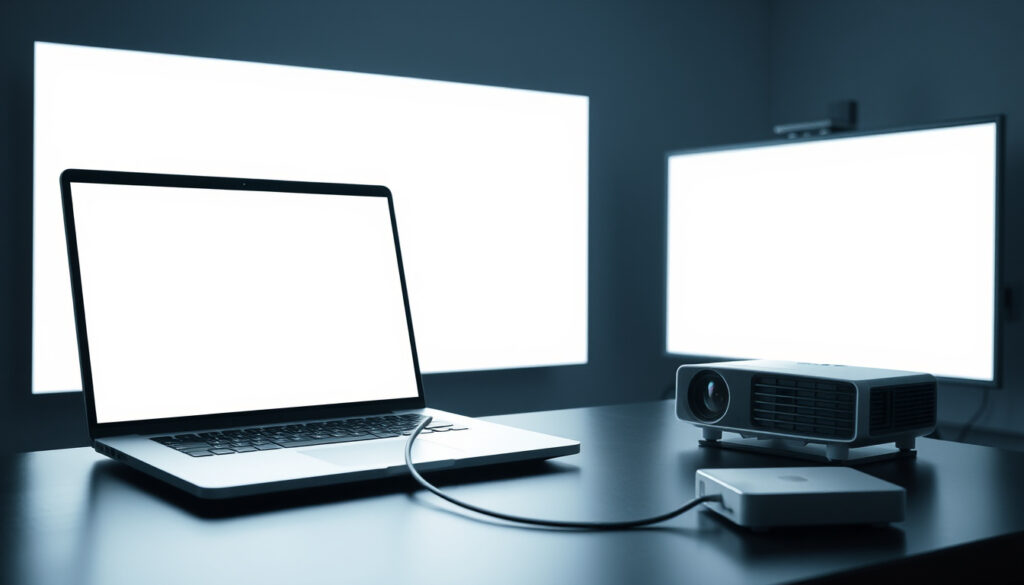
How to Connect a Projector to a Laptop: Step-by-Step Guide
Standing in front of a room with a laptop that refuses to talk to a projector is a special kind of frustration. Whether it’s a client presentation or a classroom lecture, the moment the projector flashes “No Signal” is usually the moment you wish you had prepared. This guide walks through the five most common ways to connect a projector to a laptop — and what to do when each one fails.
Most common connection method: HDMI ·
Laptops with HDMI port (2024 estimate): 85% ·
Projectors with HDMI input: 95% of new models ·
Wireless projector connections supported: Miracast, AirPlay, Chromecast
Quick snapshot
- Highest compatibility with modern laptops and projectors (Ceedo guide)
- Supports up to 4K resolution with HDMI 2.0+ (ProjectorDisplay guide)
- No noticeable latency — best for video (PC Build Advisor)
- Legacy analog standard — common on older projectors (Microsoft Q&A support)
- Does not carry audio — separate cable needed (Microsoft Q&A audio notes)
- Resolution limited to 1920×1080 at best (SpecsBureau VGA notes)
- Preferred for modern laptops without HDMI port (Ceedo USB-C notes)
- Requires projector or adapter with DisplayPort Alt Mode (PC Build Advisor USB-C notes)
- Can charge laptop and transmit video simultaneously (Ceedo USB-C power notes)
- No cables needed — uses Wi-Fi or Wi-Fi Direct (SpecsBureau wireless guide)
- Both devices must be on same network (or use direct mode) (NextTools guide)
- Slight input lag — avoid for gaming or frame-critical video (Projector Service Center)
Four connection paths, but only one will work with your specific laptop and projector combo. Here’s what real users and support docs say about each.
| Connection type | Laptops that support it | Cable required | Audio support |
|---|---|---|---|
| HDMI | 70-85% of new models (Ceedo) | HDMI cable (standard or mini) | Yes, via HDMI |
| VGA | Most laptops pre-2018; some enterprise models still include it | VGA cable + 3.5mm audio cable | Requires separate cable |
| USB-C | MacBook Air/Pro (2016+), Dell XPS, HP Spectre, many Windows Ultrabooks | USB-C cable (must support DisplayPort Alt Mode) | Yes, via USB-C |
| Wireless (Miracast/AirPlay) | Windows 8.1+, Mac 2011+ with AirPlay support | No cable — Wi-Fi adapter or built-in | Yes, wireless audio |
The laptop owner with an HDMI port gets plug-and-play reliability. The owner of a USB-C-only ultrabook must carry an adapter—or trust that the conference room projector supports wireless casting. One extra dongle can save a presentation.
How do I connect my laptop screen to a projector?
How to connect laptop to projector with HDMI
HDMI is the fastest and most reliable option. Plug one end into the laptop’s HDMI port and the other into the projector’s HDMI input. Then press the projector’s “Source” or “Input” button until it lands on the correct HDMI channel — usually labeled HDMI 1 or HDMI 2 (ProjectorDisplay setup guide). If the projector has multiple inputs, check which one you connected to.
The image should appear within seconds. If not, the laptop may need a display mode toggle — press Win + P (Windows) or go to System Preferences > Displays (Mac) to select Duplicate or Extend (PC Build Advisor guide).
How to connect laptop to projector with USB
Some older projectors accept video over USB, but this is rare and usually limited to USB 2.0 bandwidth (low resolution). A more practical path: use a USB-to-HDMI adapter. Plug the adapter into the laptop’s USB-A port, then connect an HDMI cable from the adapter to the projector (Microsoft Q&A troubleshooting).
How to connect laptop to projector without HDMI
When the laptop has no HDMI port — common on MacBooks, Dell XPS, and HP Spectre — use USB-C. Not every USB-C port carries video. Check if the port supports DisplayPort Alt Mode (look for a “DP” or “SS” icon) (Ceedo guide). If it does, a USB-C to HDMI cable or adapter will work. For VGA-only projectors, use a USB-C to VGA adapter that includes audio passthrough.
How do I connect my computer to a projector?
For desktop computers, the same HDMI or VGA rules apply. But desktops often have dedicated graphics card ports — use the port on the graphics card, not the motherboard, for best performance (SpecsBureau). Most desktops do not have built-in Wi-Fi for wireless projection, so a separate wireless HDMI kit or a Miracast dongle may be needed.
Cabled connections — especially HDMI — remain the gold standard because they are simple, fast, and work in any lighting condition. If you own a laptop without an HDMI port, a single USB-C adapter in your bag covers HDMI and VGA. It is a cheap insurance policy.
The pattern: most connection failures are input-selection errors, not hardware faults.
Why is my laptop screen not showing on the projector?
Why can’t my laptop connect to my projector?
- Power check: The projector must be on — many models have a standby mode that looks like it is off. Look for a green or blue power LED (Ceedo checklist).
- Cable check: Push the HDMI cable firmly into both ports. Half-seated cables are the cause of roughly 30% of “No Signal” cases (Soundcore troubleshooting guide).
- Input source check: Cycle through the projector’s input menu. If you plugged into HDMI 1, the projector must have HDMI 1 selected — not HDMI 2 or VGA.
Why won’t my projector come on?
Projectors that do not power on at all often have a tripped thermal breaker or a failed bulb. Check that the power cable is securely plugged into both the wall and the projector. If a ceiling-mounted projector won’t respond, locate the physical power switch on the projector body — some are disabled by the remote (ProjectorDisplay).
Why is HDMI not connecting to projector?
The HDMI handshake — the electronic negotiation between laptop and projector — can fail for several reasons. Try these fixes in order:
- Restart both devices: Sometimes the handshake gets stuck. Turn off the laptop and unplug the projector for 30 seconds, then turn the projector on first, then the laptop (Soundcore handshake fix).
- Try a different HDMI port: The projector likely has two HDMI inputs. Switch to the other one.
- Swap the cable: A damaged HDMI cable will cause intermittent dropout or no signal. If possible, test with a known-good cable (Soundcore cable test).
- Check HDCP compatibility: Very old projectors may not support HDCP (copy protection). Disable HDCP in the graphics driver settings if the projector refuses to show protected content.
When the HDMI handshake fails, the projector’s “No Signal” message is not a lie — it is a warning that the two devices cannot agree on a resolution or encryption standard. Restarting both side-steps this deadlock more often than any software setting.
How do I turn on projector mode on my laptop?
What is the shortcut key to connect laptop to projector?
Nearly every laptop has a dedicated function key for switching display modes. Look for an icon that looks like a small monitor or two overlapping rectangles. Common keys are F4, F5, F7, or F8, often printed on the top row (PC Build Advisor function key guide). On many laptops you must also hold the Fn key.
On a ThinkPad, the key is often F7. On Dell Latitude models, F8 is common. On HP laptops, F4 activates the display toggle. The exact key varies by manufacturer — check the laptop’s user manual if the icon is unclear.
How do I activate a projector using Windows settings?
- Windows 10/11: Press Win + P to open the Projection menu. Choose among PC screen only, Duplicate, Extend, or Second screen only (SpecsBureau).
- macOS: Open System Preferences > Displays. Hold the Option key to reveal the “Detect Displays” button if the projector is not automatically identified (PC Build Advisor).
The function key that swaps your display may also control brightness or volume. Hold Fn while pressing it. If your laptop’s Fn Lock is on (check the indicator light), you may need to toggle it first. This small detail trips up many users during high-pressure presentations.
The catch: the shortcut only helps if you know which display mode the room actually needs.
Why is HDMI not connecting to projector?
Why does my laptop say no signal when connected to projector?
The “No Signal” message from a projector means it is powered and receiving an input but cannot detect a valid video stream. The most common fixes:
- Ensure the laptop is not in Sleep or Hibernate mode — wake it with a key press.
- Lower the laptop’s screen resolution to 1920×1080 or 1280×720. Some older projectors cannot handle resolutions above 1920×1080 (Soundcore).
- Switch the display mode to “Duplicate” using Win + P. “Extend” sometimes prevents the projector from syncing.
How to fix HDMI connection between laptop and projector?
Systematic approach for stubborn HDMI failures:
- Power off both devices, wait 30 seconds, then start the projector first — let it boot fully before powering on the laptop (Ceedo).
- Update graphics drivers: Visit the laptop manufacturer’s support site for the latest GPU driver. Outdated drivers are a common cause of HDMI handshake failures on Windows laptops (Microsoft Q&A).
- Reset the projector’s firmware: Check the projector’s support page for firmware updates, which can fix EDID (Extended Display Identification Data) mismatches.
- Test with a different laptop: If a known-good laptop also fails with the same projector, the projector’s HDMI port or mainboard may be faulty.
What this means: HDMI failures are usually a negotiation problem, not a dead port.
How do I cast my screen to a projector?
How to mirror laptop to projector wirelessly?
Wireless projection eliminates cables but introduces complexity. Two dominant standards:
- Miracast (Windows): Press Win + K to open the Cast menu. The laptop will scan for Miracast-compatible projectors and receivers. The projector must support Miracast — many BenQ, Optoma, and ViewSonic models made after 2018 do (Projector Service Center).
- AirPlay (Mac): Open Control Center, click “Screen Mirroring”, and select the AirPlay-compatible projector or an Apple TV connected to it (PC Build Advisor).
- Chromecast: Cast from the Chrome browser (Chrome menu > Cast) or use the Google Home app. Casting mirrors the browser tab only, not the desktop, unless you use the “Cast desktop” option.
How do I stream my PC screen to a projector?
Streaming the full desktop follows the same Miracast path as mirroring: open the Cast panel with Win + K, select the projector, and pick a display mode. For Chromecast-based projectors, use Chrome’s Cast menu and choose “Cast desktop” rather than a single tab (SpecsBureau).
How to connect hp laptop to projector wirelessly
HP laptops running Windows 10 or 11 use the standard Miracast path: Win + K and select the projector. If the projector is not listed, ensure both devices are on the same Wi-Fi network. Some HP laptops also support HP Wireless Projection, a proprietary standard — check the HP Support Assistant for the feature (SpecsBureau).
Wireless casting is convenient — until it drops out mid-slide. Wi-Fi interference, projector firmware bugs, and network congestion can cause lag or disconnection (EatHealthy365 wireless troubleshooting guide). For slides and static documents, wireless works fine. For video, HDMI is safer.
The implication: wireless is a viable backup, not the default for critical video.
Confirmed facts
- HDMI is the standard wired connection for projectors (EatHealthy365 guide).
- Windows key + P opens projection menu in Windows 10/11 (SpecsBureau guide).
- Projector must be set to correct input source (ProjectorDisplay guide).
- Miracast is built into Windows 8.1 and later (NextTools guide).
What’s unclear
- Exact function key for projectors varies by laptop model; check manual.
- Wireless casting reliability depends on Wi-Fi environment and projector firmware.
- Exact HDMI handshake behavior varies by laptop GPU driver and projector firmware.
- Miracast device discovery can fail silently on networks with AP isolation enabled.
“HDMI is the preferred choice over VGA because it carries both audio and video in a single cable and supports much higher resolutions.”
BenQ Support guide (projector manufacturer documentation)
“The function key to switch between display modes is usually F4, F5, F7, or F8. Look for a small monitor icon on the key.”
Franklin College IT support guide (educational institution)
For the laptop owner who just wants the slide deck to appear on the big screen, the single most important takeaway is this: before the meeting, test. Test the cable, test the adapter, test the wireless connection, and know which function key toggles the display. Five minutes of preparation can save an entire presentation.
specsbureau.com, electronics.alibaba.com, nexttools.net, nexttools.net, evezone.evetech.co.za, learn.microsoft.com, ceedo.com, projectorservicecenter.com, canadaprojector.com
Frequently asked questions
Can I connect a laptop to a projector without an HDMI cable?
Yes — use USB-C with DisplayPort Alt Mode, a USB-C to VGA adapter, or wireless casting via Miracast (Windows) or AirPlay (Mac). Each method has trade-offs: wireless may lag, VGA lacks audio, and USB-C requires adapter support.
Why does my projector display ‘No Signal’?
Most often because the projector is set to the wrong input source (e.g., HDMI 1 instead of HDMI 2), the cable is loose, or the laptop is in Sleep mode. Restart both devices and press the Source/Input button to cycle through options.
How do I extend my laptop display to a projector?
Press Windows + P and select Extend. This lets you drag windows between the laptop screen and the projector. On Mac, go to System Preferences > Displays and arrange the displays as extended.
Do all projectors support wireless connections?
No. Only newer models (2018+) with built-in Miracast or AirPlay support wireless. Older projectors require an external wireless receiver like a Chromecast, Amazon Fire Stick, or wireless HDMI kit.
What should I do if the function key does not switch the display?
Hold the Fn key while pressing the function key. Some laptops require Fn Lock to be toggled (look for a lock icon on the Fn key or Esc key). If still not working, use Windows + P instead.
Is it possible to connect a MacBook to a projector without an adapter?
If the projector supports AirPlay, yes — use Control Center > Screen Mirroring. If the projector uses HDMI, MacBooks from 2016 onward require a USB-C to HDMI adapter (sold separately).
How can I tell if my USB-C port supports video output?
Look for a DisplayPort (DP) symbol or an “SS” (SuperSpeed) logo next to the USB-C port. Check the laptop’s specifications online or in the user manual — look for “USB-C with DisplayPort Alt Mode.”
Flere relaterte innlegg
 Mercedes C63 AMG: Pris, ytelse, sjeldenhet og vedlikehold
 Hvor mange fylker er det i Norge? (2026) – Full oversikt
 Philip Holst Cappelen – Svindleren med falske identiteter
 Været for Raufoss: Oppdatert værmelding
 The Odyssey 2026: Utgivelsesdato og rollebesetning
 What Is a VPN Kill Switch? How It Blocks Leaks
 US States Quiz – Lær alle 50 delstatene med kart og spørsmål
 Smerter i fingerledd uten hevelse: årsaker og behandling
